
How to Install Apollo Group TV on Firestick
If you are looking for how to install Apollo Group TV on Firestick quickly and easily, you are in the right place. This official guide covers the installation process for all Amazon Fire TV devices, including the Firestick 4K, Fire TV Cube, and Firestick Lite, using the Downloader app.
The installation is fast and requires no advanced technical skills. By following this guide, you will get the system running in under 5 minutes.
Table of Contents
1. Before You Start (Prerequisites)
To ensure the Apollo Group TV app installs correctly on your Firestick, check these three items first:
- Stable Internet: A speed of at least 20 Mbps is recommended for buffer-free streaming.
- Available Storage: Your Firestick needs at least 200MB of free space. Go to Settings > Applications > Manage Installed Applications to check your available space.
- Fire OS Version: The menu steps to enable "Developer Options" vary slightly depending on if you have the new or old Fire OS interface.
2. How to Install Apollo Group TV on Firestick (Step-by-Step)
Follow these exact steps to install Apollo Group TV using the official Downloader code.
Step 1: Enable Developer Options
You must allow the Firestick to install apps from outside the Amazon App Store. This is standard for all third-party apps.
For New Interface (Firestick 4K Max, Lite, New Gen):
- Go to Settings (Gear icon) > My Fire TV > About.
- Important: Highlight the name of your device (e.g., "Fire TV Stick 4K") and click the Select button on your remote 7 times fast.
- You will see a notification: "No need, you are already a developer."
- Press the Back button once to see the new Developer Options menu.
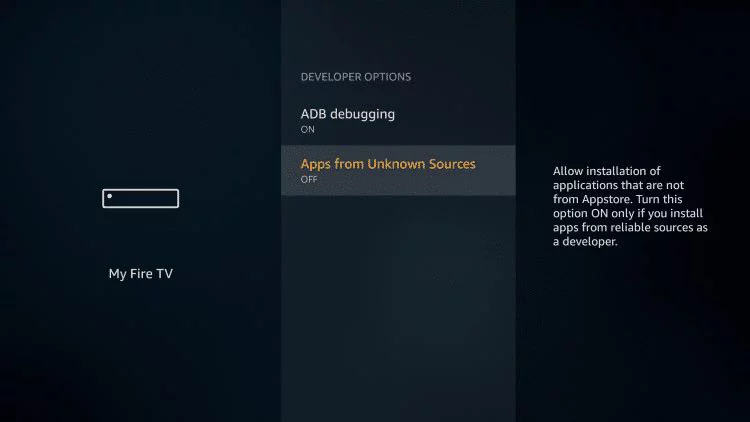
For Old Interface:
- Go to Settings > My Fire TV.
- Select Developer Options.
- Turn ON Apps from Unknown Sources.
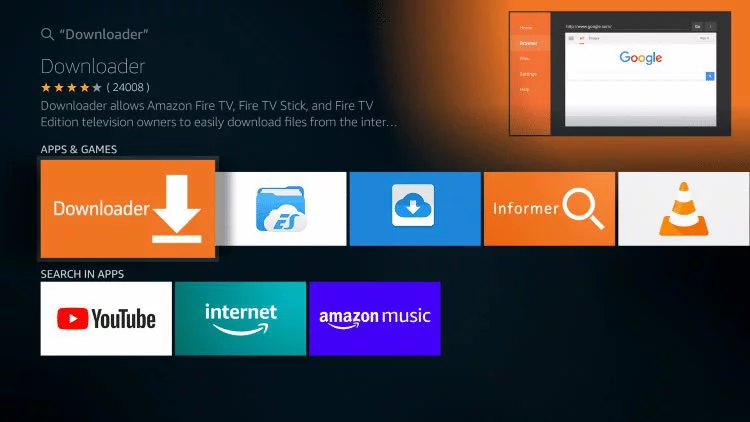
Step 2: Install the Downloader App
- Return to the Firestick Home Screen.
- Select the Find/Search icon (magnifying glass).
- Type "Downloader" and select the orange app icon.
- Click Download or Get to install it.
Step 3: Download Apollo Group TV
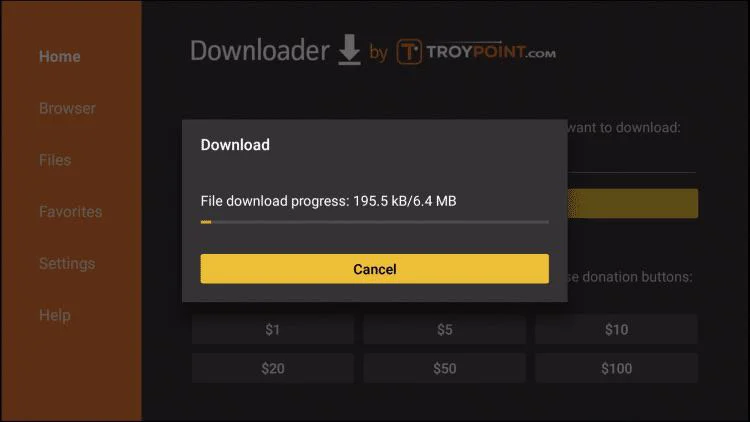
- Open the Downloader app.
- If prompted, click Allow to give it permission to access files. This is required to save the APK file.
- Click into the URL box where it says "http://".
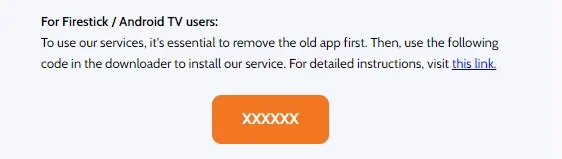
- Type the code sent to your email upon subscription: XXXX
- Click Go.
Step 4: Install the App
- Once the download finishes, a pop-up will appear automatically. Click Install.
- Wait for the "App Installed" notification.
- Click Done (do not click Open yet).
- Cleanup: You will be back in the Downloader app. Click Delete to remove the installation file. This saves valuable space on your Firestick.
3. Alternative Installation Method
If the Downloader code XXXX does not work or gives an error, use this alternative method using the direct URL.
- Open the Downloader app.
- Instead of the code, enter the full URL: https://apollozonetv.com/apk/XXXX (Replace XXXX with your code).
- Click Go.
- Follow the same install prompts as above.
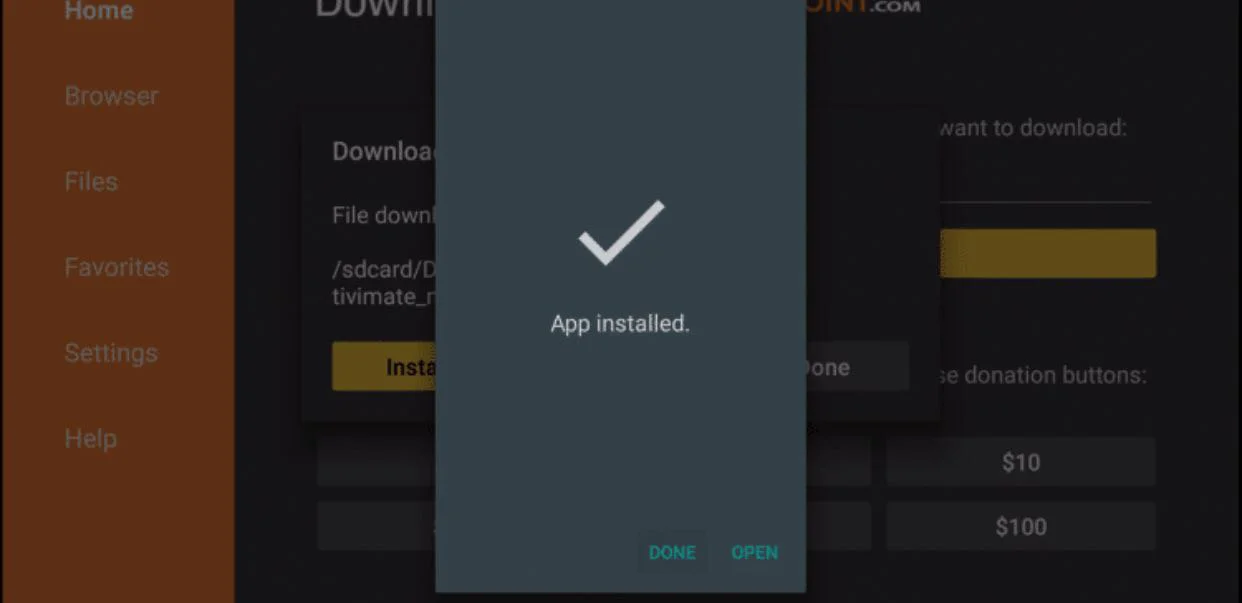
Don't forget to click "Delete" to save space on your device.
4. First-Time Setup & Activation
Now that you have successfully learned how to install Apollo Group TV on Firestick, follow these steps to set it up for the best performance.
- Hold the Home button on your remote for 3 seconds and select Apps.
- Scroll to the bottom to find the Apollo Group TV icon.
- Press the Menu button (3 lines) on your remote and select Move to front. This places it on your home screen for easy access.
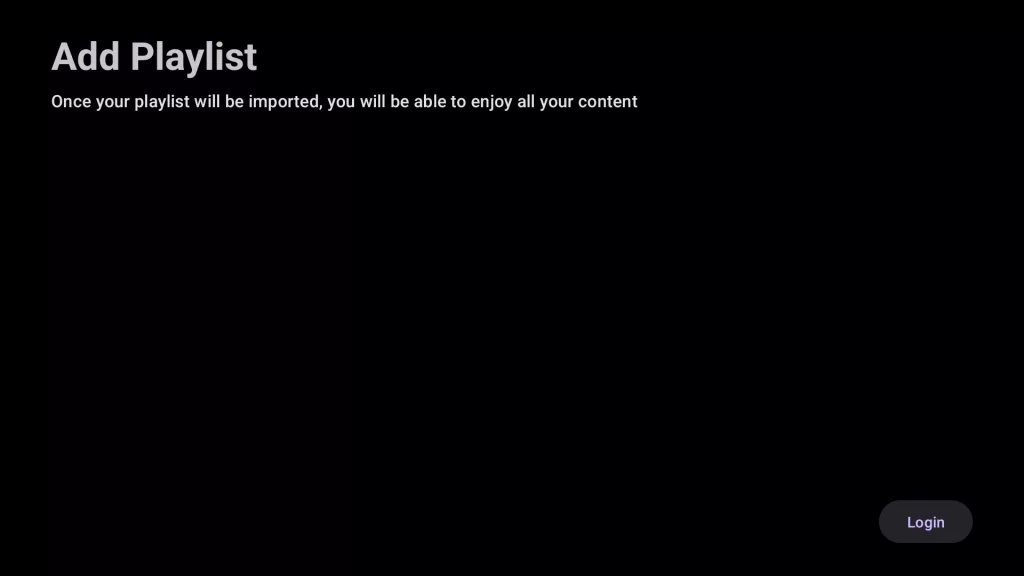
- Open the app and enter your username and password provided in your email.
5. Troubleshooting Common Issues
If you encounter issues during the Apollo Group TV Fire TV install, check these fixes. Most issues are related to network speed or cache.
App Installed But Won't Open
This is often a cache issue. To fix it:
1. Go to Settings > Applications > Manage Installed Applications.
2. Select Apollo Group TV.
3. Select Force Stop, then select Clear Cache.
4. Restart your Firestick and try again.
"Parse Error" During Install
This means the download file was corrupted or incomplete.
1. Open Downloader and delete the file.
2. Re-enter your code XXXX and try downloading again.
3. Ensure your internet did not drop out during the download.
Buffering or Freezing
Buffering is usually internet-related, not app-related. First, test your speed at Fast.com to ensure you are getting over 20 Mbps.
1. Restart your router.
2. If using Wi-Fi, use the HDMI extender cable included with your Firestick to move the device away from the back of the TV.
3. In the Apollo TV app settings, try changing the "Player" engine if available.
6. Frequently Asked Questions
Where do I enter the Downloader code?
Open the Downloader app. You will see a text box that starts with "http://". Click inside that box and enter the code XXXX that was sent to your email upon subscription.
Why can't I see Developer Options?
Amazon hides this menu on newer devices. You must unhide it by going to "About" in your settings and clicking your device name 7 times.
Can I install Apollo Group TV on Firestick Lite?
Yes. This guide works for all Fire OS devices, including the Firestick Lite, Firestick 4K Max, and the Fire TV Cube.
Next Steps
Now that you are set up, check out these helpful resources to manage your account: